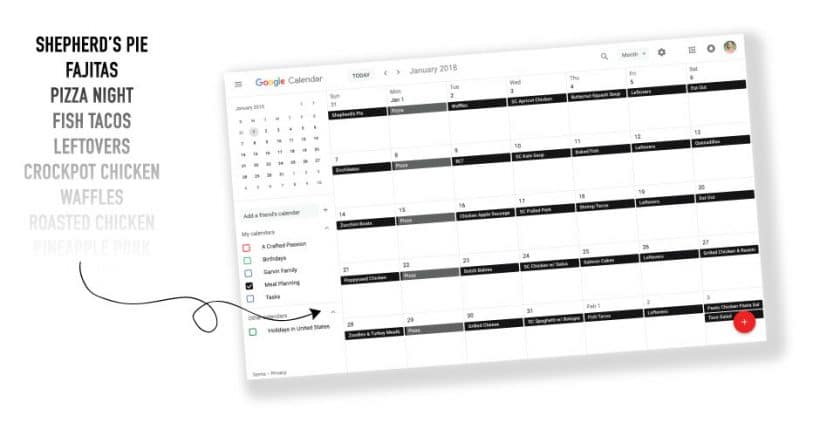
Master Your Meals: How to Meal Plan with Google Calendar
Are you tired of the daily "what's for dinner?" dilemma? Do you find yourself staring blankly into the fridge, wishing a delicious, healthy meal would magically appear? You're not alone. Meal planning is a powerful tool for saving time, money, and reducing stress, but creating a sustainable system can feel like an overwhelming task. Many traditional methods fall short, leaving us back at square one, scrounging for takeaways or repetitive meals.
Enter Google Calendar – your often-underestimated, yet incredibly powerful ally in the kitchen. What if we told you that the same tool you use to schedule appointments and reminders could revolutionize your approach to food? This comprehensive guide will show you exactly how to transform Google Calendar into your ultimate meal planning hub, allowing you to seamlessly meal plan using Google Calendar and reclaim your evenings.
Why Google Calendar is Your Ultimate Meal Planning Partner
In a world brimming with dedicated meal planning apps, why opt for Google Calendar? The answer lies in its accessibility, flexibility, and powerful integration into your daily digital life. Here's why it's a game-changer:
- It's Completely Free: Budget-conscious planning starts with a free tool. Google Calendar doesn't come with any subscription fees, making it an accessible option for everyone.
- Ubiquitous Accessibility: Your meal plan is always at your fingertips. Whether you're on your phone at the grocery store, your tablet on the couch, or your computer at work, Google Calendar syncs across all your devices. No more forgotten lists or last-minute scrambling!
- Effortless Drag-and-Drop Flexibility: Life happens. Plans change. With Google Calendar, if you need to swap Monday's casserole for Tuesday's quick stir-fry, it's as simple as dragging and dropping an event. This visual and intuitive interface makes adjusting your meal schedule a breeze.
- Seamless Collaboration: Living with family or roommates? Share your dedicated meal plan calendar with them. You can grant read-only access so everyone knows what's on the menu, or allow editing rights for collaborative planning. This transparency helps avoid confusion and encourages everyone to pitch in. To dive deeper into collaborative features, check out our guide on Save Time & Share Meals: Google Calendar System Explained.
- A Valuable Meal History: Every meal you add creates a record. This archive is invaluable for several reasons:
- Future Inspiration: Never wonder what to cook again! Browse past weeks or months for ideas when planning new menus.
- Tracking Habits: Monitor your dietary patterns, identify favorite dishes, or notice any nutritional gaps.
- Nostalgia: It's surprisingly fun to look back and see what delicious meals you were enjoying a year ago!
Setting Up Your Google Meal Plan Calendar for Success
If you have a Google account, you already have access to Google Calendar. The key to effective meal planning with this tool is creating a dedicated space for your culinary adventures.
- Create a New, Specific Calendar: Don't clutter your main personal or work calendar with meal entries.
- Open Google Calendar on your desktop.
- On the left sidebar, under "Other calendars," click the "+" sign and select "Create new calendar."
- Name your calendar something descriptive like "Meal Plan," "Weekly Menu," or even "A Menu."
- Pro Tip: Google Calendars are often listed alphabetically. Naming your calendar with a special character (like "*" or "!") or a prefix (like "A Menu") will ensure it stays at the top of your calendar list, making it easily accessible for frequent updates.
- Add a description if you like (e.g., "Our weekly meal plan for breakfast, lunch, and dinner").
- Click "Create calendar."
- Assign a Unique Color: Once created, you can assign a distinct color to your meal plan calendar. This makes it visually stand out on your main calendar view and easy to toggle on/off.
- Toggle for Clarity: Having a separate calendar means you can easily toggle your meals on or off from your main view. This keeps your daily schedule clean when you don't need to see your meals, and prevents others from seeing your personal appointments if you choose to share only your meal plan calendar.
Maximizing Your Meal Planning Efficiency with Google Calendar
Now that your dedicated calendar is set up, let's turn it into a powerhouse for managing your meals.
- Adding Your Meals as Events:
- Click on the day and time slot where you want to add a meal.
- Enter the name of your dish (e.g., "Chicken Stir-fry," "Lentil Soup," "Taco Tuesday").
- Crucially, ensure you select your newly created "Meal Plan" calendar from the dropdown menu.
- Set the time (e.g., 6:00 PM for dinner). For multi-day meals or prep, you can set an event duration.
- Add Details and Recipes: Use the "Add description" field to link to your favorite online recipe, paste the ingredients list, or add notes about side dishes or necessary prep work. This turns each meal event into a comprehensive reference.
- The Ultimate Time-Saving Hack: Reusing Past Meals:
One of the most frustrating aspects of meal planning is feeling like you're reinventing the wheel every week. Google Calendar eliminates this. Instead of retyping meals, simply:
- Navigate to a past meal event you want to reuse.
- Click on the event.
- Select "Options" (three vertical dots) and choose "Duplicate."
- Change the date and time to the new slot you desire.
- This single hack will save you countless hours over time, building a robust library of your family's favorite meals.
- Streamlining Your Grocery List: While Google Calendar isn't a dedicated shopping list app, you can integrate list-making directly:
- Event Descriptions: Add a bulleted list of main ingredients needed in the event description of each meal.
- Separate Calendar Events: Create a single event for "Grocery List" on your shopping day, listing all items in the description.
- Google Keep Integration: For more advanced list management, use Google Keep (often integrated or easily accessible from Calendar) and link your Keep note in your calendar event.
- Handling Last-Minute Changes: Life is unpredictable. If plans shift, don't abandon your system. Drag and drop meals to different days, or simply mark an event as "Canceled" or "Eaten Out" in the description to keep your record accurate.
Advanced Tips & Tricks for Google Calendar Meal Planning
Take your Google Calendar meal planning to the next level with these expert strategies:
- Color-Coding for Categories: Utilize event colors to quickly identify different meal types. For example:
- Green for Vegetarian/Vegan meals
- Red for Quick & Easy dinners
- Blue for Slow Cooker recipes
- Yellow for meals with leftovers planned
- Recurring Events for Staples: If you have consistent breakfast or lunch routines (e.g., "Oatmeal" every weekday morning, "Salad Bar Lunch" on Wednesdays), set these up as recurring events. This frees up planning time for your more varied dinners.
- Utilize Google Tasks for Prep: Don't just plan the meal, plan the prep! Create tasks in Google Calendar (or Google Tasks, which syncs) for "Thaw chicken," "Chop veggies for stir-fry," or "Soak beans." Assign these tasks to specific days to spread out your workload.
- Review and Refine: Dedicate 10-15 minutes once a month to review your past meal plans. What worked well? What didn't? What new recipes do you want to try? This iterative process helps you continually improve your system. For more ingenious ways to optimize your planning, explore Unlock Easy Meal Planning with Google Calendar Hacks.
Harnessing the power of Google Calendar for your meal planning isn't just about organizing food; it's about reclaiming your time, reducing mental clutter, and fostering healthier eating habits. By following these steps to set up, populate, and optimize your dedicated meal calendar, you'll discover a seamless, sustainable system that works for you. Say goodbye to mealtime stress and hello to delicious, well-organized dining experiences every day.
