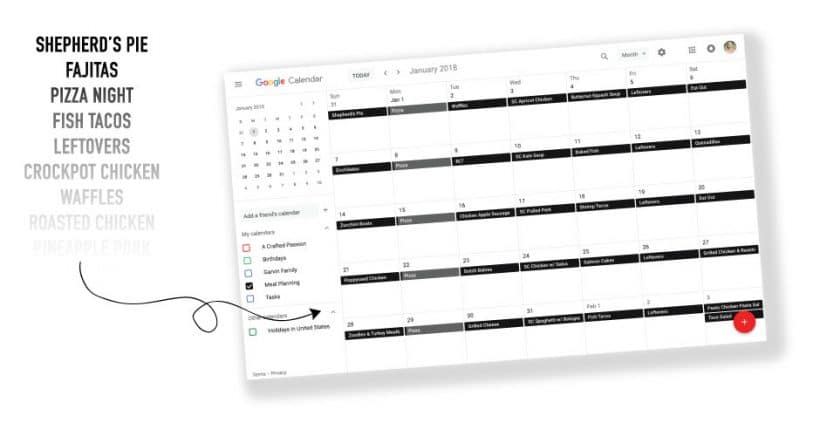
Unlock Effortless Organization: Meal Planning with Google Calendar
Are you tired of the daily "what's for dinner?" dilemma? Do you find yourself scrambling for meal ideas, leading to last-minute takeaways or repetitive dishes? Meal planning can transform your kitchen chaos into culinary calm, and there's no better, more accessible tool for the job than Google Calendar. Forget the magnetic whiteboards that get ignored or paper planners that get lost; by embracing Google Calendar for your meal planning frustration will become a thing of the past.
This comprehensive guide will walk you through setting up, optimizing, and sharing your digital meal plan using Google Calendar. We'll explore why this free, versatile tool is a game-changer for individuals and families alike, helping you save time, reduce stress, and perhaps even trim your grocery budget.
Why Google Calendar is Your Ultimate Meal Planning Partner
When it comes to efficiently managing your meals, Google Calendar stands out as an exceptionally powerful and user-friendly platform. It's not just a digital diary for appointments; it's a dynamic hub for all your culinary organization. Here’s why so many, including us, swear by it:
- It's Absolutely Free: In an era where subscription services abound, Google Calendar offers robust functionality without costing a single penny. This makes it an accessible solution for everyone looking to streamline their kitchen.
- Ubiquitous Access Across Devices: Whether you're at the grocery store, commuting, or relaxing on the couch, your meal plan is always within reach. Google Calendar syncs seamlessly across your smartphone, tablet, laptop, and desktop. This means no more forgotten lists or guessing what you had planned for the evening.
- Effortless Drag-and-Drop Flexibility: Life happens, and plans change. Google Calendar excels here, allowing you to easily drag and drop meals to different days if your schedule shifts or if you simply fancy something else. This adaptability is crucial for maintaining a sustainable meal planning routine.
- Seamless Sharing Capabilities: Living with others? Whether it's a family, roommates, or a partner, you can share your easy family meals plan with everyone. This ensures that everyone is on the same page, knows what to expect, and can even contribute to the shopping or cooking. No more endless texts asking, "What's for dinner tonight?"
- A Valuable Culinary Record: Over time, your Google Calendar becomes a rich archive of your family's eating habits. This record is invaluable for:
- Future Planning: Quickly identify favorite meals, seasonal dishes, or successful menus that you can easily reuse and adapt.
- Tracking Dietary Trends: Monitor variety, nutritional balance, or even identify potential food sensitivities over time.
- Nostalgia: It’s surprisingly fun to look back and see what you were cooking and eating weeks, months, or even years ago!
Setting Up Your Dedicated Meal Planning Calendar
To truly harness the power of Google Calendar for your meals, the first vital step is to create a separate, dedicated calendar specifically for your meal plans. This strategy offers significant advantages:
- Isolate Your Meals: By having a distinct calendar, you can toggle your meal plan on and off with a single click. This prevents your daily schedule from becoming cluttered with dinner entries, keeping your primary calendar focused on appointments and meetings.
- Maintain Privacy: If you share your main calendar with colleagues or others, a separate meal plan calendar ensures that your doctor's appointments don't show up alongside your dinner plans for your housemates.
- Enhanced Organization: All your food-related entries are consolidated in one place, making them easy to find, review, and modify.
How to Create Your Meal Plan Calendar:
- Open Google Calendar in your web browser.
- On the left sidebar, locate the "Other calendars" section.
- Click the plus icon (+) next to "Other calendars" and select "Create new calendar."
- Give your new calendar a descriptive name. We recommend something like "🍽️ My Meal Plan" or "A. Family Meals".
Pro Tip for Visibility: Google Calendar lists calendars alphabetically. By adding a special character like an emoji (🍽️) or numbering it (A.), you can ensure your meal plan calendar stays at the top of your list for quick access, which is super convenient given how frequently you'll interact with it.
- Add a brief description if you wish (e.g., "Our weekly dinner menu & food ideas").
- Click "Create calendar." You'll now see your new, dedicated calendar listed on the left sidebar under "My calendars." Make sure its checkbox is ticked so you can see it!
Seamless Sharing for Coordinated Meals
One of Google Calendar's most collaborative features is the ability to share your meal plan with others. This simple step can dramatically reduce communication overhead and foster a more harmonious household, ensuring everyone knows what's on the menu without constant questioning.
How to Share Your Meal Plan Calendar:
- From your Google Calendar interface, click on the gear icon (Settings menu) in the top right corner.
- Select "Settings."
- In the left-hand menu, under "Settings for my calendars," click on the name of your specific meal plan calendar (e.g., "🍽️ My Meal Plan").
- Scroll down to the section titled "Share with specific people."
- Click "Add people."
- Enter the email addresses of the individuals you wish to share your calendar with (e.g., family members, roommates).
- Set Permissions: This is a crucial step. You have several options for what others can see and do:
- See only free/busy (hide details): Not ideal for meal planning.
- See all event details: This is generally the best option for meal planning, allowing them to view what's planned.
- Make changes to events: Grant this if you want others to be able to add, edit, or delete meal entries. This can be great for collaborative planning!
- Make changes and manage sharing: Reserve this for trusted co-planners who need full control.
- Click "Send." The invited individuals will receive an email notification, and your meal plan calendar should automatically appear under their "Other calendars" section in their Google Calendar interface.
Should your living situation change or if you need to adjust access levels, you can always return to this same sharing settings menu to revoke access or modify permissions with ease.
Mastering Your Meal Plan: Tips, Tricks & Time-Saving Hacks
Now that your meal plan using Google Calendar is set up and ready, it's time to make it work for you. Beyond simply adding a meal, these strategies will transform your planning into a truly efficient and enjoyable process.
Filling Out Your Calendar – Beyond the Basics:
- Start with Staples & Favorites: Don't try to reinvent the wheel every week. Begin by populating your calendar with your family's tried-and-true favorites. If Tuesday is always "Taco Night" or "Pizza Friday," make those recurring events. This significantly reduces the mental load.
- Theme Nights: Assigning themes to certain days (e.g., Meatless Monday, Pasta Tuesday, Stir-fry Thursday) can spark creativity and simplify decision-making.
- Incorporate Leftovers: Plan for "leftover nights" explicitly. If you're making a big batch of chili on Monday, schedule "Chili Leftovers" for Tuesday lunch or dinner. This reduces waste and saves cooking time.
- Link Recipes Directly: In the event description for each meal, add a link to the recipe you'll be using. This keeps everything centralized and prevents frantic searching when it's time to cook. You can also add notes about ingredient substitutions or prep ahead tasks.
Leveraging Google Calendar's Smart Features for Efficiency:
- Copy and Paste Events: This is a game-changer! Instead of re-typing meals, simply click on an existing meal event, select "Duplicate" or "Copy to" (or use Ctrl/Cmd+C and Ctrl/Cmd+V to paste onto another day), and move it to a new date. This is perfect for rotating menus or repeating favorites.
- Recurring Events for Staples: For meals you have regularly (e.g., breakfast smoothies, Monday salads, Sunday roast), set them up as recurring events. Google Calendar allows flexible recurrence patterns (daily, weekly, monthly, custom).
- Color-Coding for Clarity: If you're managing multiple dietary needs, meal types (e.g., quick, slow cooker, freezer meal), or even different family members' preferences, use different calendar colors to quickly distinguish them.
Beyond the Calendar: Integration with Your Life
- Grocery List Generation: While Google Calendar doesn't automatically create a shopping list, seeing your week's meals laid out makes compiling your list incredibly fast. Open your calendar and a separate note-taking app (like Google Keep or a simple document), then go day by day, jotting down needed ingredients.
- Review and Adapt: At the end of each week, take a few minutes to review your meal plan. What worked well? What didn't? Did you waste food? Use these insights to refine your next week's plan. This continuous improvement loop is key to a sustainable system.
Conclusion
Transitioning to meal planning with Google Calendar offers a powerful blend of convenience, flexibility, and collaboration that traditional methods simply can't match. From its free, multi-device accessibility to its intuitive sharing and record-keeping features, it's an indispensable tool for anyone looking to bring order to their kitchen. By setting up a dedicated calendar, sharing it with your household, and employing smart planning hacks, you'll not only save precious time and money but also enjoy a more peaceful and organized approach to daily meals. Start your journey today and experience the transformative power of a well-planned week!
